How to Check and Confirm Your Check-Mig
Once you submit the form, the next step is to check your Check-Mig and have the confirmation ready. Migración Colombia emails you proof of your pre-registration. That's the document you show —on screen or printed— at passport control, whether you're entering or leaving the country.
In 30 seconds: After submitting Check-Mig you receive a confirmation email. Save it, print it, or take a screenshot. If it doesn't arrive, check spam, verify the email you typed, and refill the form if needed. At immigration you simply show the confirmation alongside your passport.

What Is the Check-Mig Confirmation?
The Check-Mig confirmation is the proof the Migración Colombia system generates when you successfully submit the form. It confirms that your details were recorded before your trip.
This proof usually arrives by email at the address you entered on the form. It also appears on the final screen right after you submit, before you close the page.
It's not a visa or an entry authorization: it only certifies that you completed the pre-registration. Even so, it's the document many airlines and immigration officers want to see. If you still have questions about the process, review what Check-Mig Colombia is.
Quick summary: The confirmation is proof of your pre-registration. It arrives by email and appears on screen at submission. It doesn't replace your passport or visa.
How to Check Your Check-Mig Step by Step
Checking your Check-Mig means locating and opening the confirmation you already received. Follow these steps:
- Open the inbox of the email you used to complete the form.
- Search for the sender Migración Colombia or a subject line with "Check-Mig".
- Check the spam or junk folder if you don't see it right away.
- Open the email and find the confirmation proof or link.
- Download or save the document to your phone so you have it offline.
If you completed the form with an assisted service, the confirmation can be resent from that same service. Always check that the name and passport number on the confirmation match your travel document exactly.
Quick summary: Checking Check-Mig means opening the confirmation email. Find it by sender or subject, check spam, and save it to your device.
What to Do If the Confirmation Email Doesn't Arrive
This is one of the most common worries. A missing email doesn't always mean the form failed. Before redoing it, check the following:
- Wait a few minutes: delivery can take up to 10 or 15 minutes.
- Check spam and promotions: the message often gets filtered there.
- Verify the email you typed: a typo prevents delivery.
- Search by keyword: type "Check-Mig" or "Migración" in the search bar.
- Check your connection: an interrupted submission may not have registered.
If after all that the email still doesn't appear, the form probably wasn't submitted or the email had a typo. In that case, calmly complete it again. Our guide to common Check-Mig mistakes helps you avoid repeating the error.
Expert tip: Type your email twice and in lowercase when filling out the form. A single wrong character is the number-one cause of confirmations that "never arrive".
Quick summary: Before redoing the form, wait a few minutes, check spam, and verify the email you typed. If nothing works, complete the form again.
How to Retrieve or Resend Your Check-Mig
If you lost the email or deleted the confirmation, you still have options to retrieve it before you travel:
| Situation | What to do | Result |
|---|---|---|
| Deleted the email | Look in your mailbox trash | Recover the original |
| Email had a typo | Complete the form again | New confirmation |
| Used assisted service | Request a resend from the service | Resent to your email |
| Changed your email | Redo the form with the correct email | Valid confirmation |
| No mailbox access | Take a screenshot on submission | Backup copy |
The safest way to avoid relying on retrieval is to save the proof right away. As soon as you see the confirmation screen, take a screenshot before closing the page, even if you're also waiting for the email.
Remember that Check-Mig is per trip: if you're going to enter and leave the country, each journey has its own confirmation. Don't reuse one from a previous trip.
Quick summary: You can retrieve the confirmation from trash, by redoing the form, or by requesting a resend. Keep a screenshot as a backup.
How to Save and Print Your Confirmation
Having the proof accessible on travel day prevents airport stress. There are several ways to keep it, and ideally you should combine more than one:
- Screenshot: save it to your phone's gallery.
- PDF download: if the email has an attachment, store it on your device.
- Paper printout: useful if you travel without battery or data.
- Cloud copy: upload it to your email or an accessible folder.
- Forward to a relative: so someone else can retrieve it too.
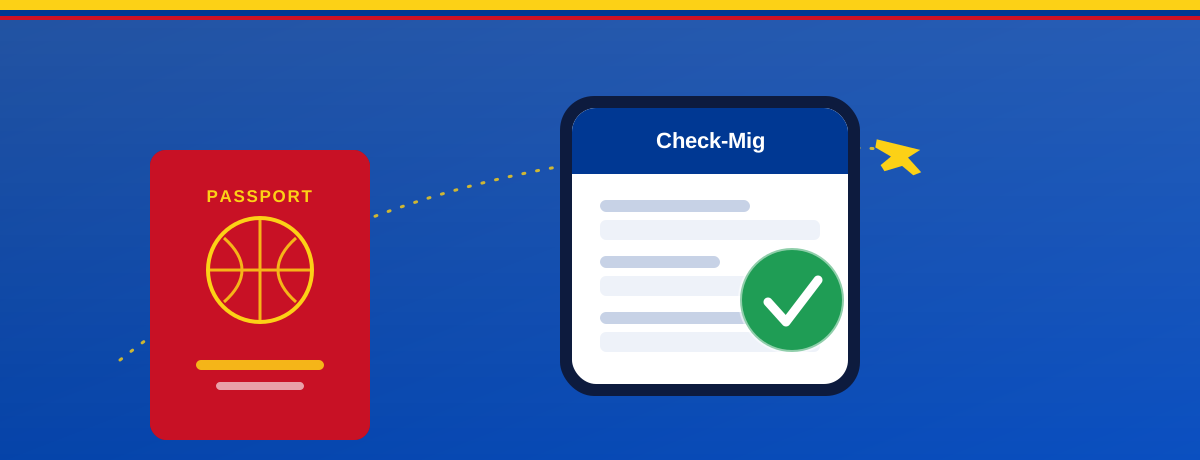
Saving the proof offline is key: many checkpoints lack stable wifi. A screenshot in your gallery is always available, even if the signal drops.
Quick summary: Combine screenshot, PDF, and printout. Keep at least one offline copy so you don't depend on the airport signal.
What to Show at Border Control
When you reach the checkpoint, the process is simple. Have these two items ready:
- Your valid passport or travel document.
- The Check-Mig confirmation, on screen or printed.
The officer may ask to see the proof, or simply verify your registration using your passport. At some airports the airline also checks the confirmation at the counter or the boarding gate before letting you board.
If you travel by land or sea, the proof works the same way. See the details by route in Check-Mig by air, land and sea.
Quick summary: At immigration, show your passport and confirmation. The airline may also request the proof before you board.
How to Confirm Your Check-Mig Was Registered Correctly
Beyond receiving the email, it's worth verifying that everything is correct to avoid surprises. Check these points on your confirmation:
- Full name identical to your passport.
- Passport number with no swapped digits.
- Flight details and dates correct.
- Travel direction correct (entry or exit).
- Contact email valid for future messages.
If you spot an error on the confirmation, the safest move is to redo the form with the correct details within the allowed time window. A wrongly recorded detail can cause delays at the checkpoint.
Remember to respect the timing: Check-Mig is completed within the 72 hours before travel. If you haven't filled it out yet, first review how to fill out Check-Mig step by step and the Check-Mig requirements.
Quick summary: Verify name, passport, dates, and travel direction on the proof. If anything is wrong, redo the form within the allowed window.
How Much Does It Cost to Check or Retrieve Check-Mig?
Checking your confirmation has no cost: you just open the email you received. Completing the form again on the official Migración Colombia site is also entirely without cost.
Online assistance services are optional and paid. They help travelers who prefer someone to review their details, resend the proof, or resolve email issues. They don't replace the official process, which still has no cost. To compare, see the official cost of Check-Mig.
Quick summary: Checking and retrieving Check-Mig has no cost on the official site. Assistance services are an optional extra for added convenience.
Key Takeaways
- The confirmation arrives by email and appears on screen at submission.
- Take a screenshot right away, don't rely on the email alone.
- If it's missing, check spam and verify the email you typed.
- You can retrieve it from trash or by redoing the form.
- Keep an offline copy for travel day.
- At immigration, show your passport and confirmation.
Frequently Asked Questions About Checking and Confirming Check-Mig
How do I check my Check-Mig?
Open the email you used to complete the form and look for the message from Migración Colombia with the confirmation. Check the spam folder too. That email is your Check-Mig confirmation.
How long does the confirmation email take to arrive?
It usually arrives within a few minutes, though it can take up to 10 or 15. If it doesn't appear after that, check spam and verify that the email you entered on the form is correct.
What if I don't receive the Check-Mig confirmation?
Wait a few minutes, check spam and promotions, and search for "Check-Mig". If it still doesn't arrive, there was probably an email typo or the submission didn't complete: fill out the form again.
Can I retrieve my Check-Mig if I deleted the email?
Yes. Check your mailbox trash, search by keyword, or refill the form if it doesn't appear. If you used an assisted service, you can request a resend of the proof.
Do I need to print the Check-Mig confirmation?
It's not mandatory: you can show it on screen. Even so, keeping a printout or an offline screenshot is recommended in case you run out of battery or lose signal at the airport.
What do I show at border control?
Your valid passport or travel document and the Check-Mig confirmation, on screen or printed. The airline may also ask for the proof before allowing you to board.
Is the Check-Mig confirmation a visa?
No. The confirmation only certifies that you completed the immigration pre-registration. It doesn't replace a visa or passport, and your entry depends on your nationality and travel documents.
Does the same confirmation work for entry and exit?
No. Check-Mig is per trip. You need one confirmation for entry and a separate one for exit. Don't reuse the proof from a previous journey.
Can I check Check-Mig without internet?
To open the original email you need a connection, but if you saved a screenshot or PDF you can view them offline. That's why it's best to keep an offline copy before you travel.
Does it cost money to check or retrieve Check-Mig?
No. Checking the email and completing the official form again has no cost. Only the optional assistance services carry a fee for reviewing details or resending the proof.
Last updated: July 2026. Immigration rules can change; always verify the current requirements on the official Migración Colombia website before you travel.